Create your account
In one sentence
Sign up with your email (or Google), confirm your address, and you’ll land in a fresh Workspace, ready to connect WhatsApp.
Before you start
- An email address you can check right now (for the confirmation link).
- 5 minutes. You do not need your WhatsApp number or any technical details yet.
Step by step
Open the sign-up page
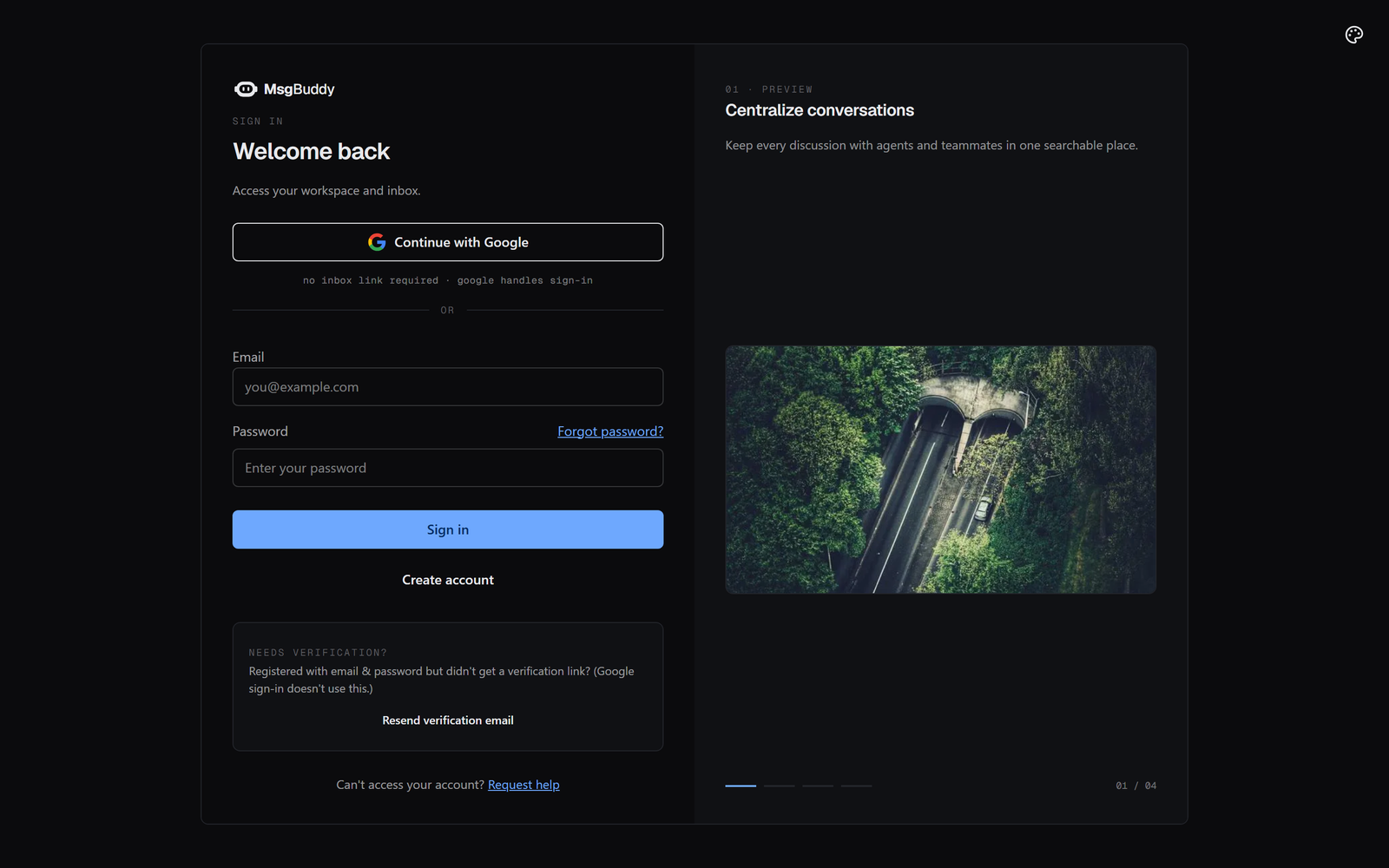
Go to app.msgbuddy.com and choose Create account (or Register). You’ll see two ways to sign up.
Pick how you’ll sign in
| Option | Best when | What happens |
|---|---|---|
| Continue with Google | You use Gmail/Google Workspace | One click, no password to remember. |
| Email + password | You prefer a classic login | You’ll set a password and verify your email. |

Signing up with Google is the fastest path and skips the email-verification step. You can always add a password later in Settings → Account & Security.
Verify your email (email sign-ups only)
If you used email + password, we send you a confirmation link. Open your inbox and click it. Didn’t arrive? Use Resend verification on the sign-in screen and check your spam folder.
You’re in — meet your first workspace
After verifying, MsgBuddy creates your first Workspace automatically and drops you on the Dashboard. You’re now the Owner of this workspace (the top role — more on roles soon).

Account created and signed in. Next you’ll connect a WhatsApp number — but first, a quick word on what a “workspace” actually is, because it shapes everything.
What you’ll see on the Dashboard
Your brand-new workspace is empty, so the Dashboard mostly shows a friendly “Connect WhatsApp” to-do card. That card is your next destination.
Signing back in later
- Forgot your password? Use Forgot password on the login screen; we email a reset link.
- Only ever used Google? Just click Continue with Google again.
- Invited to someone else’s workspace? You’ll get an email invite — see Invite your team for how accepting works.
Troubleshooting
| Problem | Fix |
|---|---|
| Verification email never arrived | Check spam; click Resend verification; make sure the address is spelled correctly. |
| ”Email already in use” | You may already have an account — try Sign in or Forgot password instead. |
| Google button does nothing | Allow pop-ups for app.msgbuddy.com, then retry. |
Next: understand what a Workspace is → before you connect.